 remb
remb

[Runtime
](../../../index.md)[Package Manager
](../../../pm/cli/install/index.md)[Bundler
](../../../bundler/index.md)[Test Runner
](../../../test/index.md)[Guides
](../../index.md)[Reference
](https://bun.com/reference)[Blog
](https://bun.com/blog)[Feedback
](../../../feedback/index.md)
Bun speaks the WebKit Inspector Protocol. To enable debugging when running code with Bun, use the --inspect flag. For demonstration purposes, consider the following web server.
 server.ts
Bun.serve({
  fetch(req) {
    console.log(req.url);
    return new Response("Hello, world!");
  },
});
Let’s run this file with the --inspect flag. This automatically starts a WebSocket server on an available port that can be used to introspect the running Bun process. Various debugging tools can connect to this server to provide an interactive debugging experience. Bun hosts a web-based debugger at debug.bun.sh. It is a modified version of WebKit’s Web Inspector Interface, which will look familiar to Safari users.
terminal
bun --inspect server.ts
------------------ Bun Inspector ------------------
Listening at:
  ws://localhost:6499/0tqxs9exrgrm

Inspect in browser:
  https://debug.bun.sh/#localhost:6499/0tqxs9exrgrm
------------------ Bun Inspector ------------------
Open the provided debug.bun.sh URL in your browser to start a debugging session. From this interface, you’ll be able to view the source code of the running file, view and set breakpoints, and execute code with the built-in console.
Let’s set a breakpoint. Navigate to the Sources tab; you should see the code from earlier. Click on the line number 3 to set a breakpoint on our console.log(req.url) statement.
Then visit http://localhost:3000 in your web browser. This will send an HTTP request to our localhost web server. It will seem like the page isn’t loading. Why? Because the program has paused execution at the breakpoint we set earlier. Note how the UI has changed.
At this point there’s a lot we can do to introspect the current execution environment. We can use the console at the bottom to run arbitrary code in the context of the program, with full access to the variables in scope at our breakpoint.
On the right side of the Sources pane, we can see all local variables currently in scope, and drill down to see their properties and methods. Here, we’re inspecting the req variable.
In the upper left of the Sources pane, we can control the execution of the program.
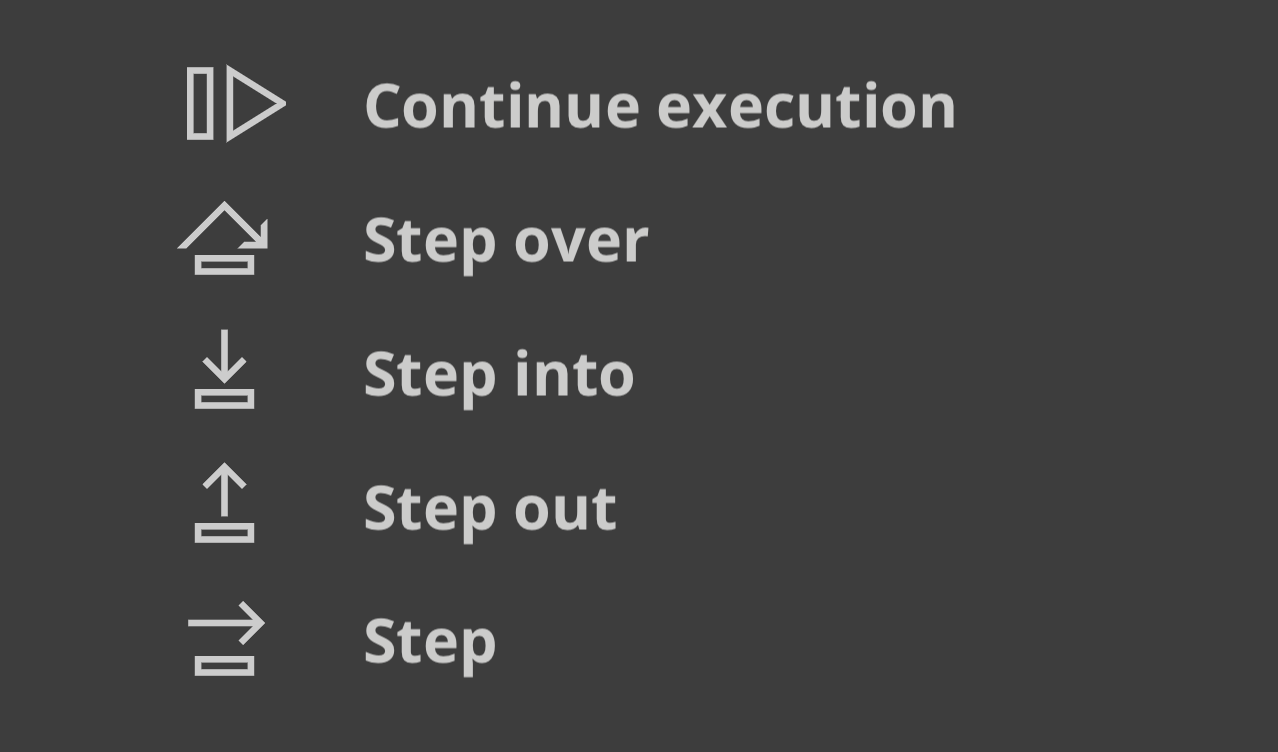
Here’s a cheat sheet explaining the functions of the control flow buttons.
- Continue script execution — continue running the program until the next breakpoint or exception.
- Step over — The program will continue to the next line.
- Step into — If the current statement contains a function call, the debugger will “step into” the called function.
- Step out — If the current statement is a function call, the debugger will finish executing the call, then “step out” of the function to the location where it was called.
Was this page helpful?
[
Debugging Bun with the VS Code extension
Previous
](../vscode-debugger/index.md)[
Inspect memory usage using V8 heap snapshots
Next
](../heap-snapshot/index.md)