 remb
rembDocumentation Index
Fetch the complete documentation index at: https://resend.com/docs/llms.txt
Use this file to discover all available pages before exploring further.
A branch step evaluates a condition against event or contact data and routes the Automation down one of two paths: condition met or condition not met. Common use cases:
- Plan-based emails — Send different content to free vs. paid users.
- Engagement splits — Take different actions based on user activity.
- Personalization — Tailor follow-ups based on event payload values.
How it works
Using the dashboard
Add a Condition step and configure the condition using the editor.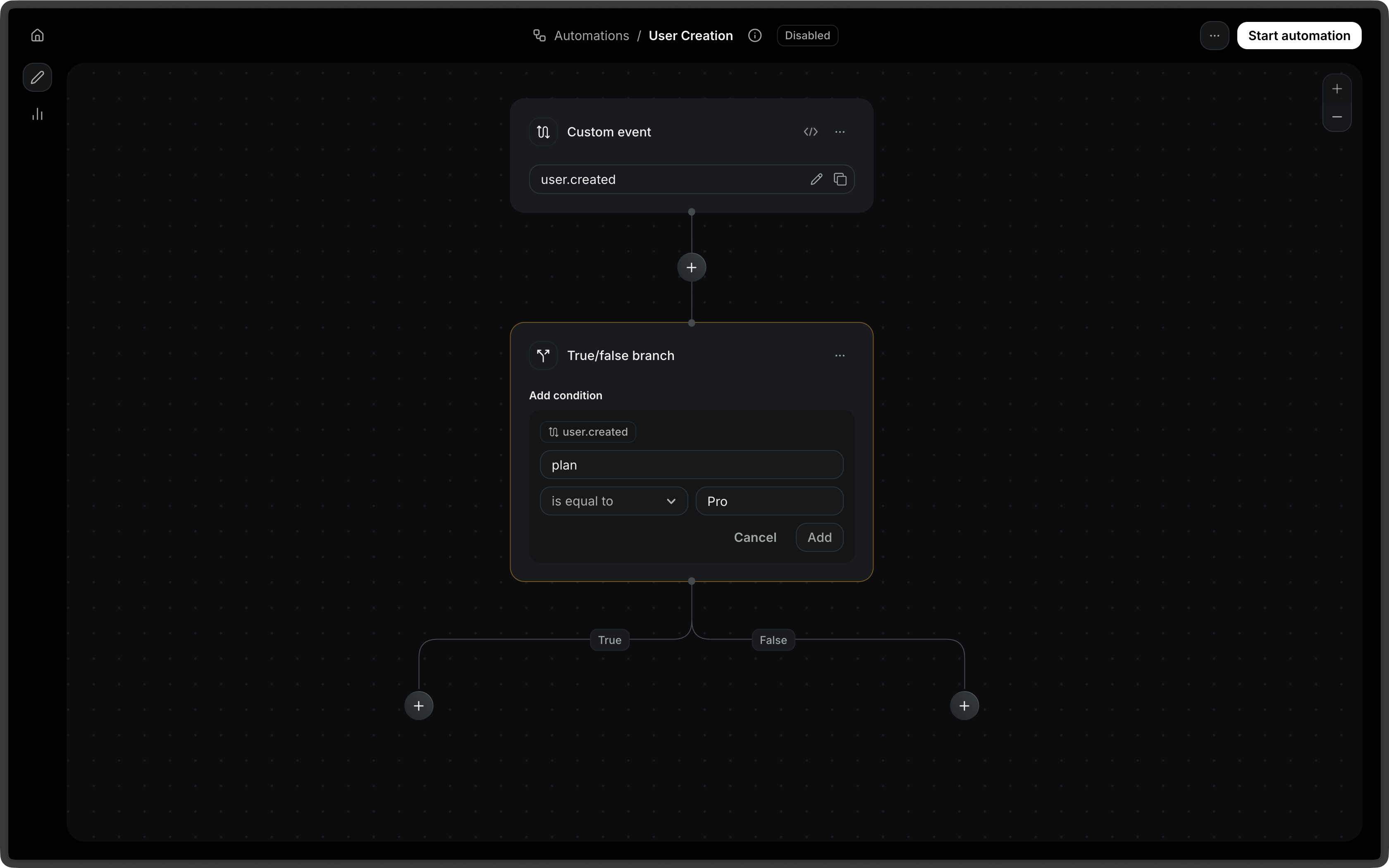
Using the API
The condition step accepts a type and the corresponding rule fields.
Connection types
A condition step always produces two outgoing connections.
| Connection type | Description |
|---|---|
condition_met | Taken when the condition evaluates to true |
condition_not_met | Taken when the condition evaluates to false |
{
  "from": "check_plan",
  "to": "send_pro_email",
  "type": "condition_met"
},
{
  "from": "check_plan",
  "to": "send_free_email",
  "type": "condition_not_met"
}
Configuration
The type of condition node. Possible values:
ruleandor
For rule type:
The field to evaluate. Must use the event. or contact. namespace prefix (e.g., event.amount, contact.email).
The comparison operator. Possible values:
eq: equalsneq: not equalsgt: greater thangte: greater than or equal tolt: less thanlte: less than or equal tocontains: contains a given valuestarts_with: starts with a given valueends_with: ends with a given valueexists: field existsis_empty: field is empty
config.value
string | number | boolean | null
The value to compare against. Not required for exists and is_empty operators.
For and / or types:
An array of nested condition config objects. Must contain at least one item.
Single rule example:
{
  "key": "check_plan",
  "type": "condition",
  "config": {
    "type": "rule",
    "field": "event.plan",
    "operator": "eq",
    "value": "pro"
  }
}
Use and or or to combine multiple rules into a single branch:
{
  "key": "check_plan_and_amount",
  "type": "condition",
  "config": {
    "type": "and",
    "rules": [
      {
        "type": "rule",
        "field": "event.plan",
        "operator": "eq",
        "value": "pro"
      },
      {
        "type": "rule",
        "field": "event.amount",
        "operator": "gte",
        "value": 100
      }
    ]
  }
}